
Valorant, Riot Games' free-to-play first-person tactical hero shooter, has grown considerably since its official release on June 2, 2020. While its esports ecosystem is thriving, the game's in-built voice communication system is essential for team play. However, players sometimes encounter issues that disrupt this crucial feature. If you're struggling with voice comms in Valorant, you've come to the right place. This guide will walk you through the steps to troubleshoot and fix these issues.
The Importance of Voice Comms in Valorant
Before delving into the solutions, it's essential to understand the role of voice comms in Valorant. The game requires not just impeccable shooting skills but also effective communication among teammates. Particularly when paired with four other random players, the built-in voice comms serve as a valuable tool for quick strategy discussion, thus eliminating the need for third-party software like Discord or TeamSpeak.
Common Issues and First Steps to Troubleshoot
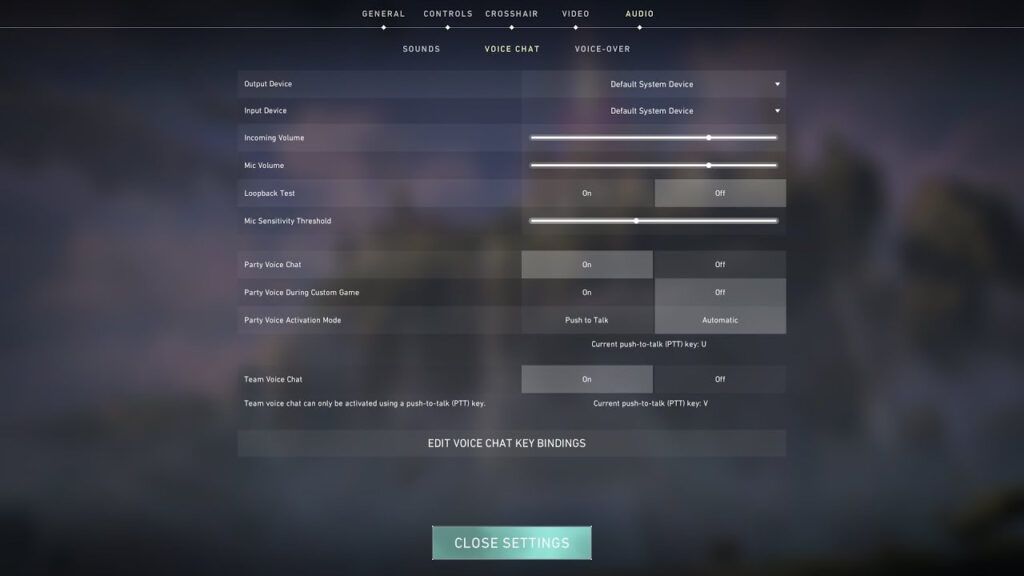
Image: Valorant
Initial Verification: In-game Audio Settings
If you or your teammates can't hear each other, the initial step involves checking your in-game audio settings in Valorant. Here's how to proceed:
- Navigate to the game settings.
- Select the Audio settings.
- Verify that the correct output and input devices are chosen. These should align with the hardware you're using.
- For microphone verification, select the 'Loopback Test' option. If you can hear your own voice during this test, the settings are correct. If not, choose another microphone.
Additional Checks for Hardware
- Devices and Peripherals: Make sure that your headset and microphone aren't on mute. Also, confirm that the volume levels are set appropriately on both your headset and your PC.
- Sound Settings in Windows: Right-click the speaker icon in the system tray and go to 'Sounds'. Under the Recording tab, set your primary microphone as the Default Device. Confirm that the microphone is capturing sound by observing the capture indicator bar.
Fine-Tuning Sound Settings
- Exclusive Mode: In the 'Sounds' settings, navigate to 'Properties' after selecting the microphone. Go to the 'Advanced' tab and uncheck 'Allow applications to take exclusive control of this device'.
- Sample Rate: In the same tab, set the sample rate to 16 bit, 44100Hz.
Additional Fixes
Run Valorant as Administrator
It might help to launch Valorant with administrative permissions. To do so, right-click on the game's application icon and select 'Run as Administrator'.
Check Push-to-Talk Settings
Ensure that both party and team voice chat are enabled in the game settings. Also, verify the keybinds assigned for voice communication.
Conclusion
Voice communication is a critical aspect of the gameplay experience in Valorant. Issues with voice comms can severely disrupt team coordination and overall performance. Fortunately, most issues can be fixed through a series of steps that involve checking both the game's audio settings and your computer's hardware settings. By following the steps outlined in this guide, you can ensure a smoother and more communicative gameplay experience.


