
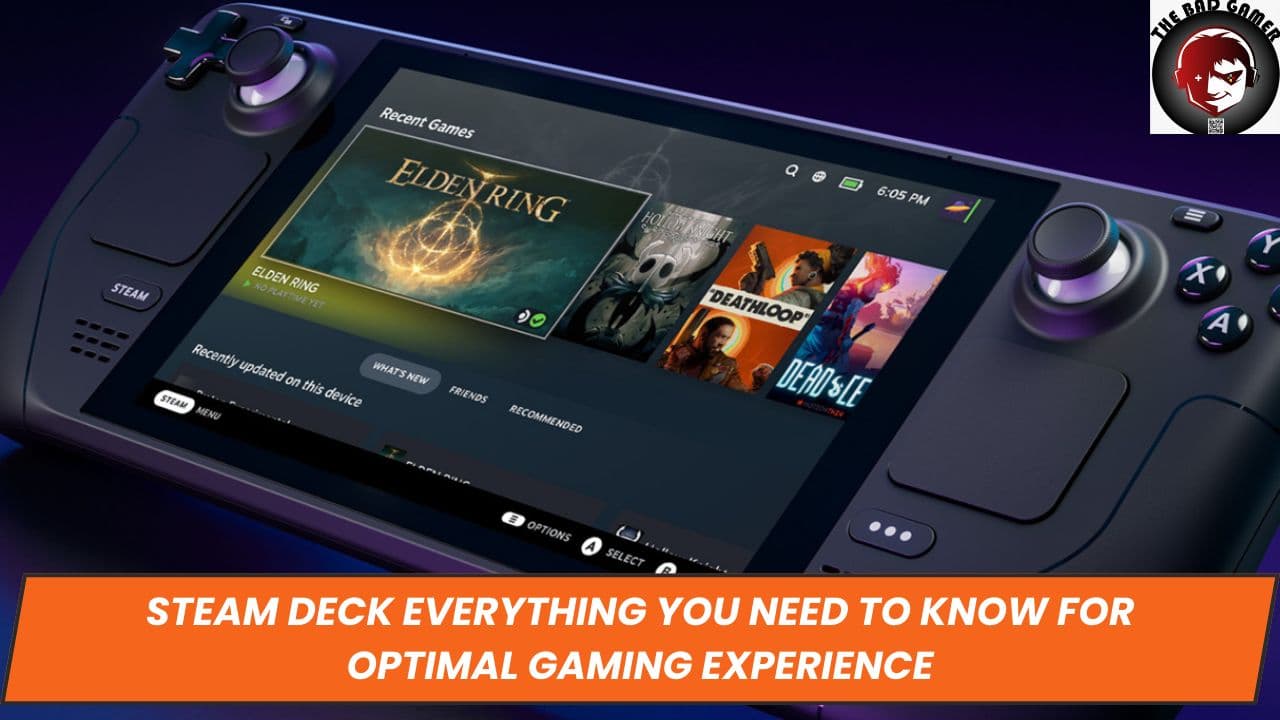
Congratulations on purchasing your new Steam Deck. While the device offers straightforward gaming, there are several steps you can take to optimize your experience. This comprehensive guide will take you through these steps, detailing the how-tos and whys in an easy-to-read format.
Check Your Favorite Games on ProtonDB

The Steam Deck relies on Linux and uses software called Proton to run Windows-based games. Valve, the company behind Steam Deck, categorizes game compatibility into four types: verified, playable, unsupported, and unknown. However, these rankings may not always reflect the true gaming experience. It's advisable to consult ProtonDB, a crowdsourced platform that provides user-generated data on game performance.
For instance, the game "God Eater" is certified but may offer a sub-par experience on the Steam Deck. Conversely, "God Eater 3" is classified as playable but could run smoothly right off the bat. Thus, checking ProtonDB can guide you in setting the correct configurations for your favorite games.
Upgrade Your Storage

The Steam Deck comes in three storage options: 64GB eMMC, 256GB SSD, and 512GB SSD. If you find these insufficient, it is possible to upgrade the storage yourself. For SSD upgrades, you will require an M.2 2230 SSD. Alternatively, you can expand your storage by using a microSD card. MicroSD cards are generally cheaper but offer slower transfer speeds compared to SSDs.
Utilize a USB Hub

The Steam Deck lacks certain features like a dock or a kickstand. A USB hub can be a valuable addition, allowing you to connect the device to external displays and more peripherals. Various third-party docks can also supplement your gaming setup by providing additional ports and functionalities.
Protect and Personalize Your Device

Screen protectors are a cost-effective way to protect your Steam Deck. These usually come in packs of three and are priced between $10-$20. Furthermore, you can use custom skins to both safeguard and personalize your device, providing an element of uniqueness to your gaming experience.
Familiarize Yourself with SteamOS

SteamOS is the operating system that powers the Steam Deck. It features two modes: a desktop mode and a gaming mode. Upon startup, you will be required to update the system and sign in to your Steam account. The OS offers various sections like Library, Store, Social, Media, and Settings that can be navigated easily via touchscreen or joysticks.
Quick Settings Menu

Accessible via a button with three dots on the bottom right, the Quick Settings menu is a versatile tool. It allows you to adjust settings like brightness, framerate limit, and refresh rate. It also provides access to your friends list and much more, enhancing your in-game experience.
Use Quick Commands

The Steam Deck comes with built-in shortcuts, accessible via the controller. These shortcuts can help in quickly adjusting brightness, taking screenshots, or even force shutting down a game. These commands can be easily reviewed by long-pressing the Steam button.
Manage Controllers

You can either use the integrated controllers or pair external controllers via Bluetooth. To configure the buttons, navigate to the Controller settings within the game or the SteamOS interface. Our separate guide on the best Steam Deck controllers can help you choose the right external controllers.
Browse Community Controller Schemes

Steam allows users to remap controller buttons and share these schemes. With additional buttons and a gyro feature, the Steam Deck offers multiple ways for customized controls. If unsure, you can explore community-shared button layouts for ideas.
Shop with Steam Points

Valve's Points Shop offers additional customization options like keyboard themes and startup animations. These can be purchased using points accumulated from game purchases.
Tinker with In-Game Graphics Settings

Some games might require adjustments in graphics settings to run optimally. While this process might appear cumbersome, it allows you to find the right balance between performance and visual quality. Platforms like ProtonDB can guide you in this.
Desktop Mode Customizations

Desktop mode allows you to access Linux and offers further customization options. For example, you can install a third-party Minecraft launcher despite the game not being available on the Steam store.
Windows Installation

If you wish to broaden your gaming library, Windows can also be installed on the Steam Deck. This can be accomplished by creating a new partition or using an external boot drive.
Final Thoughts
The Steam Deck is a versatile device that offers extensive customization and optimization opportunities. By following these tips, you will be better equipped to make the most of your handheld gaming PC.